How to get a YouTube transcript into Claude
Claude can't watch videos, but give it the transcript and it can summarize, answer questions, and quote exact moments. Here are the three ways to do it, from slowest to fastest.
Method 1: Copy the transcript by hand
YouTube shows transcripts for most videos with captions:
- Open the video and expand the description box.
- Click Show transcript. A panel opens beside the player.
- Click the three-dot menu in the panel and choose Toggle timestamps if you want cleaner text.
- Select all the text in the panel, copy it, and paste it into a Claude chat.
This works, but it has real problems. Long videos produce transcripts that overflow the chat input. The text arrives as one unstructured wall with no title, channel, or source link. And the transcript lives in a single conversation, next week, in a new chat, Claude has never seen it.
Method 2: Save the transcript to a file and upload it
A step up: paste the copied transcript into a text file, add the video title and URL at the top yourself, and upload the file to a Claude conversation or project. Claude handles files well, and if you upload to a project, the transcript becomes reusable knowledge. The downside is the workflow, five minutes of copying, cleaning, labeling, and uploading per video. Do that for a 30-video research topic and you've lost an afternoon.
Method 3: One click with a Chrome extension
The YouTube Transcript to Claude extension collapses the whole workflow into a single button on every YouTube watch page:
- Install the extension and open any YouTube video with captions.
- Click Add to Claude, it sits right next to Like and Share.
- Pick the Claude project to file it into (check "remember" and future clicks are fully automatic).
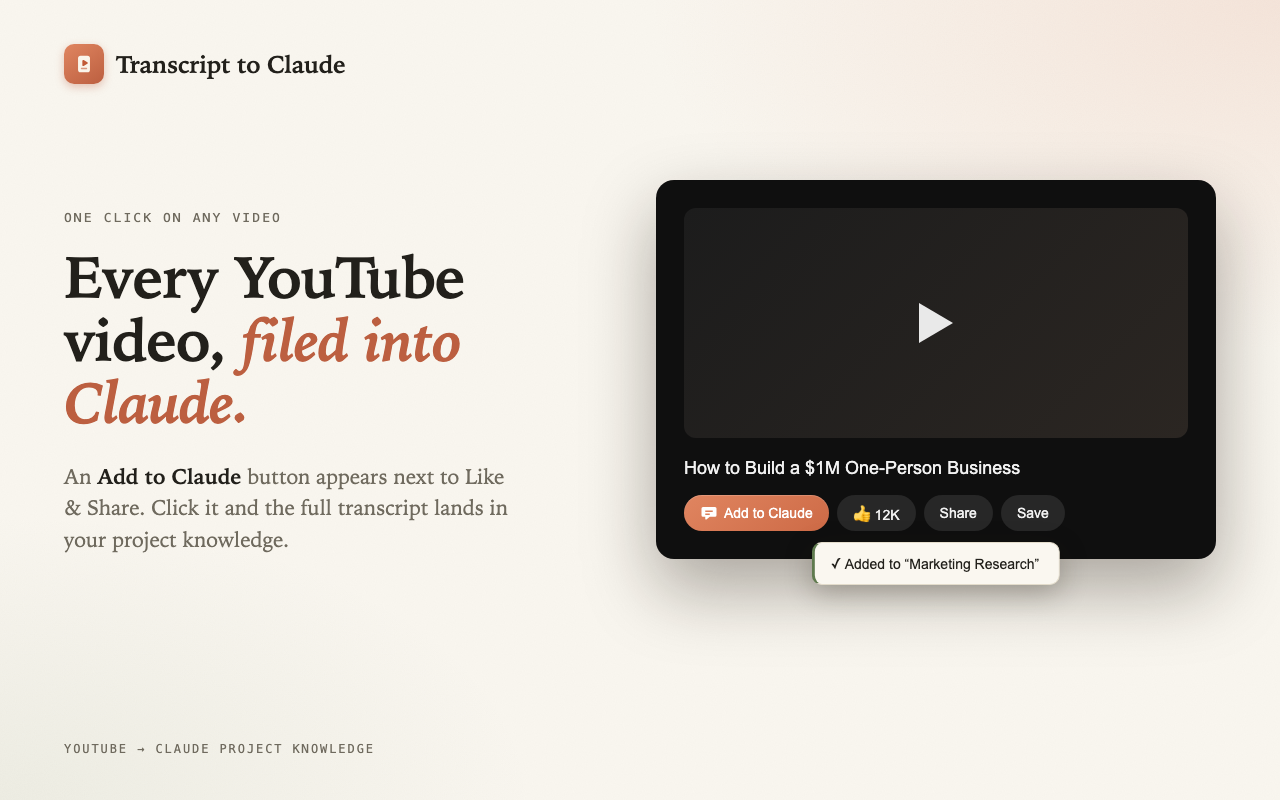
The transcript lands in your project's knowledge as a formatted markdown document: video title as the heading, channel, source URL, length, and the full transcript in ~30-second paragraphs, each with a [m:ss] timestamp. Because it's project knowledge rather than chat paste, every future conversation in that project can reference it.
[14:32] in its answer, you can jump to that exact second of the video to verify the claim, no more "somewhere in the middle it said…".Which method should you use?
For a single short video you'll only discuss once, manual copy-paste is fine. For anything you want to keep, research libraries, competitor analysis, course notes, use the extension and a dedicated Claude project. See also: how to add a YouTube video to a Claude project and how to summarize a YouTube video with Claude.
Do it in one click instead
YouTube Transcript to Claude is a free Chrome extension. No API key, no signup, it uses your existing claude.ai session.
Add to Chrome, it's free